
Hyperscanning with BrainAccess
Learn how to collect synchronized data from multiple devices
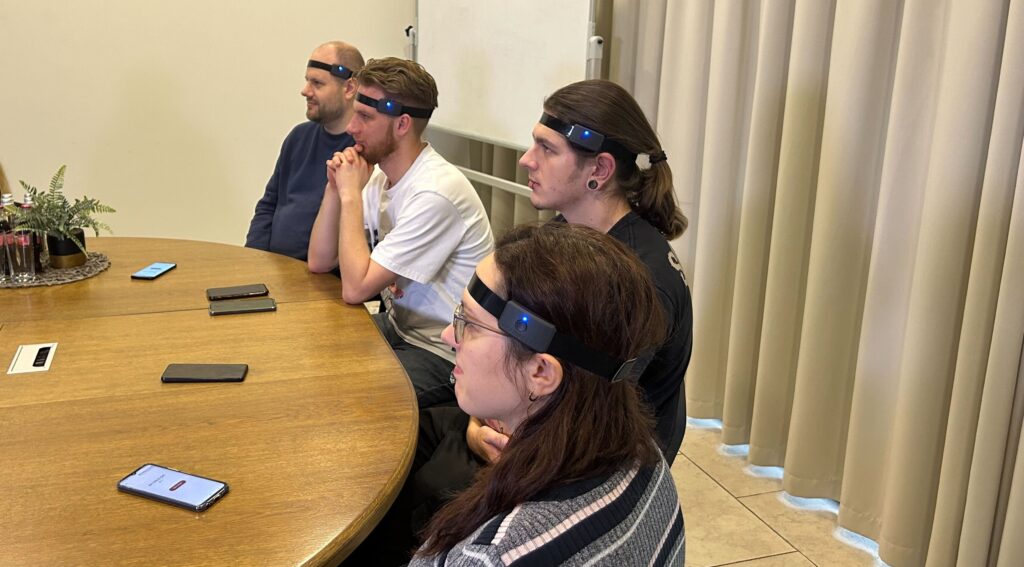
Hyperscanning is a technique used to record brain activity from two or more people at the same time. Instead of studying one participant in isolation, hyperscanning makes it possible to investigate how brains interact during social, cognitive, motor, or collaborative tasks.
This approach is useful for studying real-time interaction between participants, such as communication, cooperation, competition, joint attention, teaching and learning, or synchronized movement. By recording EEG from multiple people simultaneously, researchers can compare individual brain activity and explore patterns of inter-brain synchronization.
BrainAccess is well suited for hyperscanning because it supports multiple devices connected at the same time, allowing EEG signals from different participants to be streamed, monitored, and recorded in parallel. BrainAccess Board makes it possible to check the status of each device, monitor signal quality across participants, visualize the EEG data, and manage recordings from a single interface.
In this tutorial, you will learn how to set up and perform a hyperscanning recording using BrainAccess devices and our free Software Suite.
Hyperscanning with Board
The BrainAccess Board desktop application supports multi-device connection and synchronization through Lab Streaming Layer (LSL).
You can connect several BrainAccess devices, such as two HALO headbands or two MIDI kits, to the same computer or local network. Each device streams EEG data in real time, while LSL provides timestamp synchronization across all connected streams.
This setup allows you to record EEG data from multiple participants at the same time, inspect signal quality across devices, and save the synchronized data for later analysis.
Typical setup
A typical hyperscanning workflow with BrainAccess Board includes the following steps:
- Connect multiple BrainAccess devices.
- Inspect the signal from each device.
- Record all connected devices in the same recording session.
- Convert and synchronize the recorded data.
Connect multiple devices
Launch BrainAccess Board and go to:
Connect → BrainAccess
BrainAccess Board automatically scans for BrainAccess devices available in the network or within Bluetooth range. Detected devices will appear in the BrainAccess devices table.
Find the device you want to use and click Connect.
If several devices are available, you can type the name of the device in the search box to locate it more easily. Once the device is connected, it will appear in the Connected Devices section, together with information such as battery level, connection status, and channel template.
Repeat the same steps for the other devices you want to include in the hyperscanning session.
For more details on how to connect devices, see the Connect section in the BrainAccess Board tutorial.
View the signal
Once your devices are connected, you can inspect the EEG signal from each device.
You can open the Signal Viewer in two ways:
- click the eye icon under Action in the Connected Devices table
- click View in the sidebar
In the Signal Viewer, use the DEVICE dropdown in the top-left area to switch between connected devices.
This allows you to visually inspect the EEG data from each participant, monitor signal quality, check the PSD, identify noisy channels, and verify that all devices are streaming correctly before starting the recording.
For a complete guide to the Signal Viewer, see the Signal Viewer tutorial.
Record the signal
To start a hyperscanning recording, go to Record in the sidebar.
Choose the recording Directory, or keep the default one, then enter a filename and click Start recording.
Under Sources, you can check how many devices are currently connected and streaming. This section allows you to verify which devices will be included in the recording.
When recording starts, BrainAccess Board collects data from all connected and streaming devices. The data from all devices is stored in the same recording session.
For more info on how to recrod your signal, visit the Record section in BrainAccess Board tutorial.
Convert and synchronize the files
After recording, it is recommended to convert the data into one of the available output formats:
- FIF
- SET
- BIDS
- CSV
To do this, go to the Convert section and select the format that best fits your analysis workflow.
For more information about file conversion, see the Convert section in BrainAccess Board tutorial:
Final notes
This configuration is ideal for controlled laboratory experiments and real-time BCI applications that require millisecond-level synchronization.
However, performance depends on Bluetooth capability and local setup conditions. For this reason, this approach is not recommended for studies with many devices, for example more than 5 devices connected at the same time.
For larger hyperscanning setups, see the section below.
Hyperscanning with Mobile Lite and local network
For larger hyperscanning setups, BrainAccess devices can also be streamed through the BrainAccess Mobile Lite and a local Wi-Fi network.
In this configuration, each BrainAccess device is connected to an Android phone. The mobile app streams the EEG data to the local network via Wi-Fi. BrainAccess Board can then detect these streams as available LSL devices and connect to them from the computer.
This setup is recommended for studies that include many devices, because the data is streamed over Wi-Fi rather than relying only on direct Bluetooth connections to the computer.
Typical setup
A typical workflow includes the following steps:
- Connect each BrainAccess device to an Android phone using the BrainAccess Mobile Lite.
- Stream the data from the mobile app to the local network via Wi-Fi.
- Open BrainAccess Board on your computer.
- Go to Connect → Network.
- Connect to the available LSL streams.
- Inspect, record, and convert the data as usual.
Connect devices through the local network
After the BrainAccess devices are connected to the mobile app and streaming over Wi-Fi, open BrainAccess Board on your computer and go to:
Connect → Network
The available LSL streams will appear in a table under the Network section.
This table works similarly to the Connect → BrainAccess section. It shows the available devices and stream information, but the devices are detected from the local network instead of being connected directly to the computer.
Find the device stream you want to use and click Connect.
Once connected, the device will be added to BrainAccess Board and you will be able to access the stream locally on your computer.
Repeat this step for all devices you want to include in the hyperscanning session.
Synchronization through LSL
Because the data is streamed through the local network, this setup can support a much larger number of devices than a direct Bluetooth-only setup.
The streams are synchronized using Lab Streaming Layer (LSL), which aligns the connected devices to the same clock. This allows EEG streams from different participants to be recorded together and synchronized for analysis.
This configuration can also be combined with additional LSL marker streams, for example to synchronize the EEG data with behavioral events, audio stimulation, visual stimulation, or task markers.
Inspect, record, and convert the data
Once the devices are connected through Connect → Network, the rest of the workflow is the same as for directly connected BrainAccess devices.
You can:
- inspect each device in the Signal Viewer
- monitor signal quality
- record all connected streams in the same session
- convert the recording to formats such as FIF, SET, BIDS, or CSV
- use Synchronize time across recording during conversion to align all streams to a common time zero
For detailed instructions, see the previous sections on viewing, recording, and converting hyperscanning data.
Platform support
At the moment, this workflow is supported with the Android 12+ version of the BrainAccess Mobile Lite.
macOS and iOS support are currently not available, but they will be supported in a future release.
Something still unclear? Ask Jena!
Jena is an AI assistant integrated into BrainAccess Board that can help you understand Board settings, check status across devices, evaluate EEG signal quality for multiple participants, find problems early, and suggest ways to improve your signal in real time.
Open it from Ask Jena in the sidebar and type your question.
For additional information or help troubleshooting, please contact: [email protected]